Disclosure. LayerSay is built on PhotoCraft’s engine, and LayerSay Studio is our own modified build of the PhotoCraft editor. We have an interest in PhotoCraft being good — keep that in mind. We are not affiliated with, sponsored or endorsed by the ArtCraft team or Adobe, and we earn nothing from PhotoCraft downloads.
The short answer
| PhotoCraft | Photopea | |
|---|---|---|
| Maturity | Alpha; first released in 2026 | Established; first released in 2013 (Wikipedia) |
| License | Open source (MIT or Apache-2.0) | Proprietary, free with ads |
| Where it runs | Desktop apps (macOS, Windows, Linux, FreeBSD) and the browser | The browser |
| Ads | None | Yes, in the editor; a paid Premium account removes them |
| Layered PSD between the two | Worked both ways in our test (details below) | |
| Automation | Command line + MCP server for AI agents | An API for embedding and scripting (docs) |
| Pick it if… | You want open source, a desktop app, or to drive edits from code or AI | You want the most mature editor that runs in any browser today |
How we tested
- Setup: Chrome 155 on macOS, Apple M2 Pro, 2026-10-26; Photopea as served at photopea.com that day; PhotoCraft 0.8.2 in LayerSay Studio.
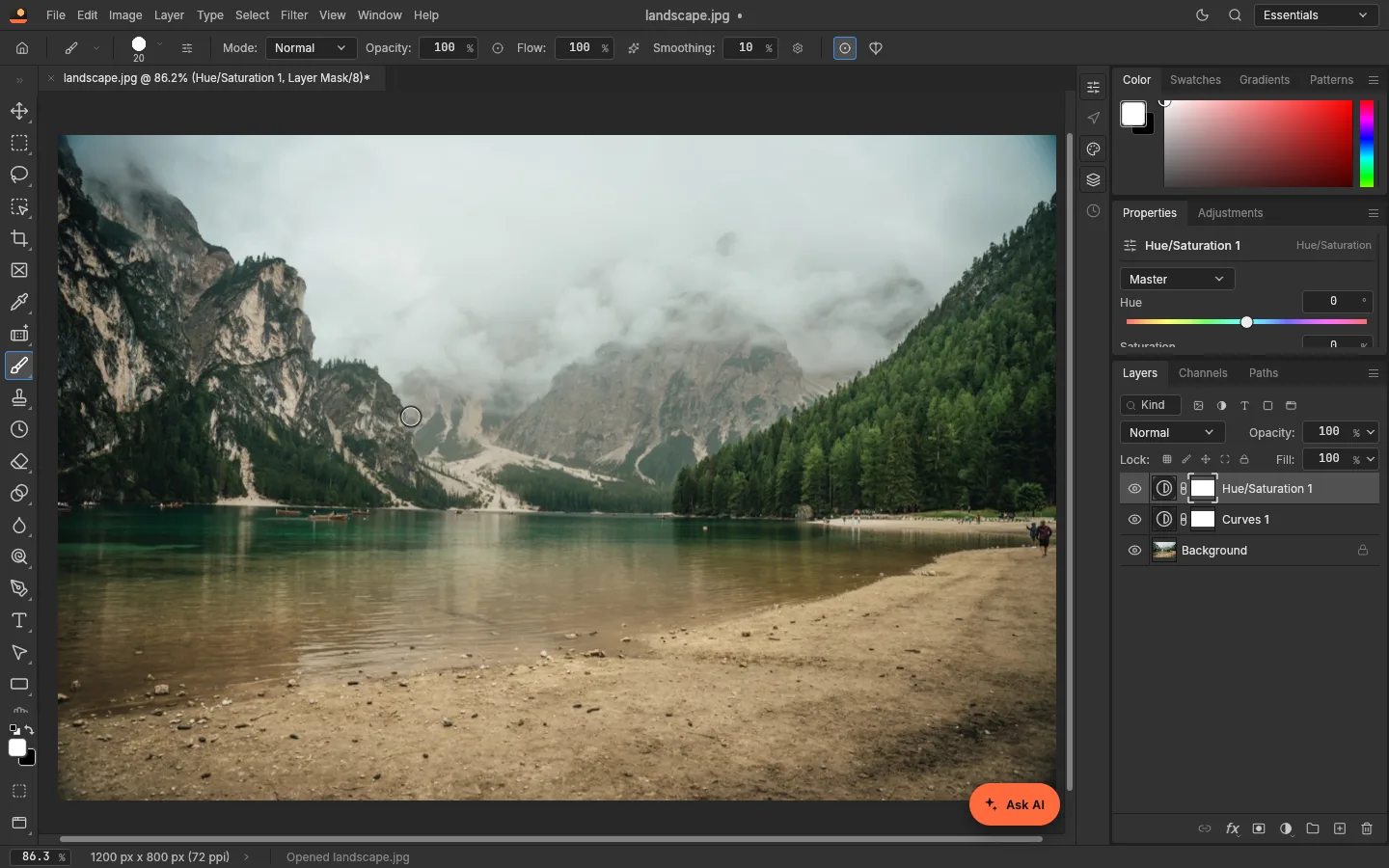
- Files: the same 1200×800 landscape photo, and a PSD we made in PhotoCraft with two adjustment layers (Curves and Hue/Saturation, each with a mask).
- Network: every request each editor made in the first 60 seconds after it opened, recorded through Chrome’s DevTools protocol, split into the editor’s own domain and third parties.
- Not tested: Photopea Premium, phones and tablets, and complex PSDs with text layers or smart objects.
PSD files, both directions
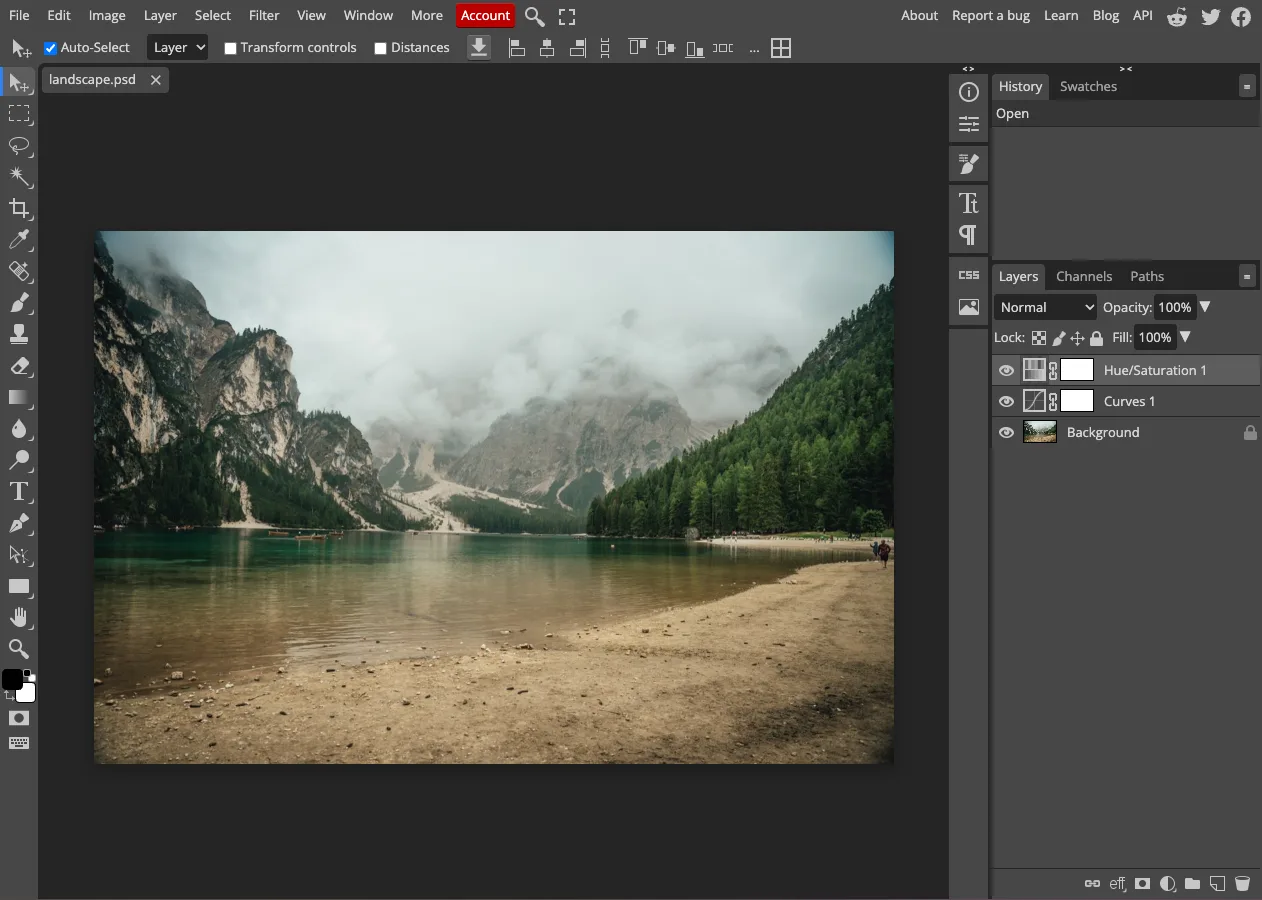
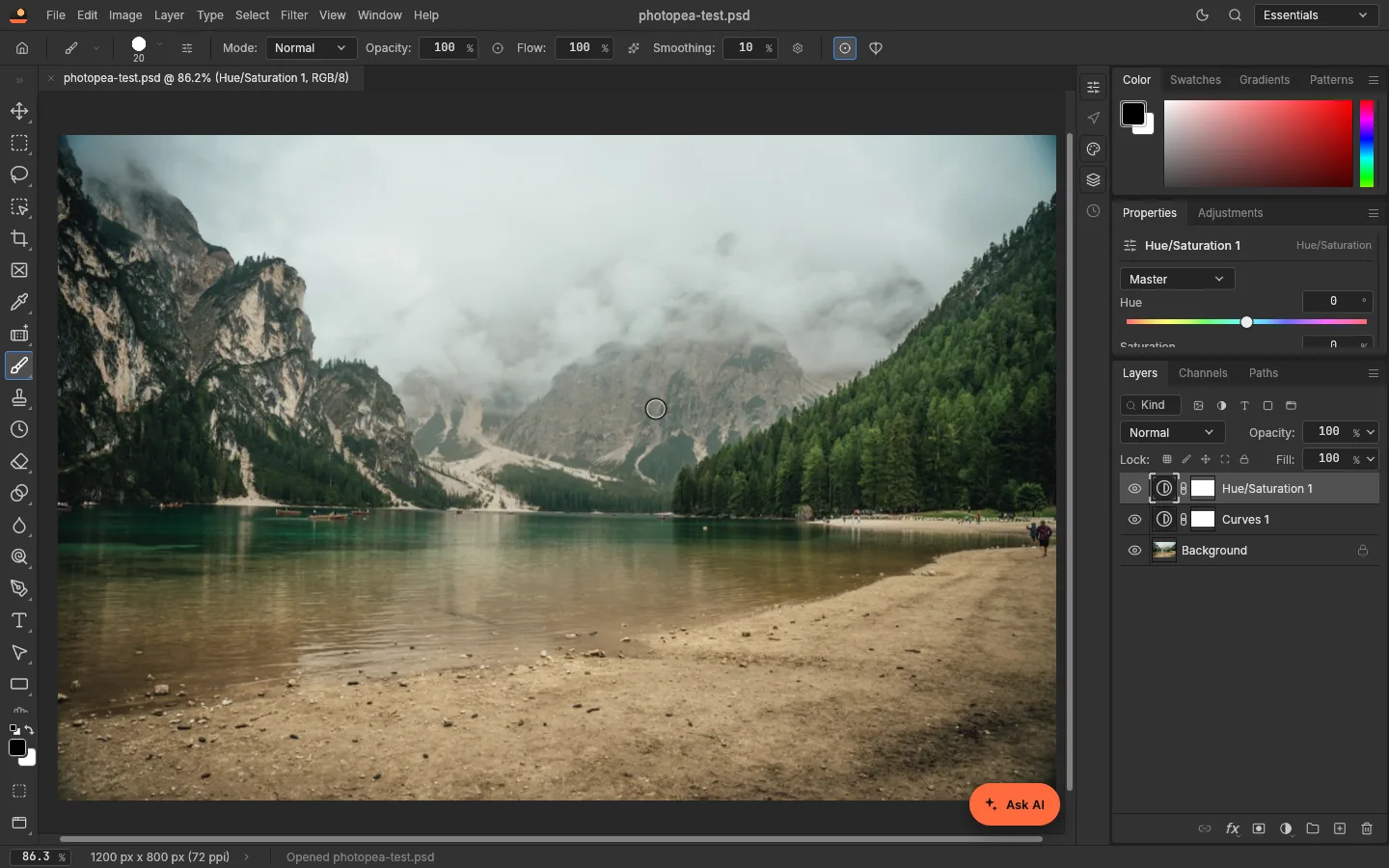
This is the question most people have: can you hand a file from one to the other without losing your layers? For our test file, yes. The PSD saved by PhotoCraft opened in Photopea with all three layers, and the two adjustments arrived as real adjustment layers with their masks — not flattened pixels (screenshot above).
Then we saved it again from Photopea (File › Save as PSD) and opened that file in PhotoCraft: same three layers, same two adjustment layers, still editable.
A caveat: this was a simple file. Text layers, smart objects and layer effects are where PSD support usually breaks, and PhotoCraft’s own tests pass 133 of 256 Photoshop-authored files (format parity). For anything complex, open the result before you rely on it.
What loads, and who else is on the page
| First 60 seconds in the editor | PhotoCraft (LayerSay Studio) | Photopea |
|---|---|---|
| From the editor’s own domain | 10 requests, 8.56 MB | 15 requests, 2.56 MB |
| From third parties | 2 requests, 0.19 MB (Cloudflare analytics, Google Analytics) | 189 requests, 1.08 MB, mostly ad networks |
PhotoCraft downloads more up front: the whole editor arrives as one WebAssembly file, 8.5 MB compressed, which the browser then caches. That file is a complete desktop app compiled for the browser, so it carries what a JavaScript app like Photopea borrows from the browser — its own image decoders (HEIC, RAW, EXR, PSD…), interface toolkit, renderer and fonts — and it loads every feature at once. Photopea’s editor code is about 2.2 MB compressed and fetches more as you use features, so its 2.56 MB covers the first minute, not everything it can load. It also runs an ad auction while you work; in our sessions a sidebar ad sat to the right of the canvas. Its numbers vary with the ads served, so treat them as one sample, not a constant.
Both process your images in the browser. Photopea says files “never leave your device”; for PhotoCraft in LayerSay Studio, the only thing sent is a small preview when you ask the AI assistant for an edit (privacy). We didn’t audit Photopea’s code.
Where Photopea is ahead
- Maturity. More than a decade of fixes shows: it is the safer choice for daily work in a browser.
- More file types on the start screen, including Illustrator, XD, Figma, Sketch and PDF.
Where PhotoCraft is ahead
- Open source. You can read, change and self-host it; nothing is locked behind a subscription.
- Desktop apps. Native builds for macOS, Windows, Linux and FreeBSD, rendering on the GPU, alongside the browser version.
- Built for automation. Every action is one of 900 commands, and the MCP server lets AI agents run them — see PhotoCraft and AI.
- No ads.
Which should you use?
For dependable everyday editing in a browser today, Photopea. For open source, a native app, or edits driven by scripts and AI, PhotoCraft — accepting that it is alpha. Since PSDs move between them, you don’t have to choose only one. To try PhotoCraft without installing anything, open LayerSay Studio; our tutorial walks through a first edit.
Sources
- Photopea — Wikipedia (history, license, funding)
- Photopea API
- PhotoCraft README (platforms, license)
- PhotoCraft file-format parity (PSD tests)
- PhotoCraft web build: fonts
How we write these pages: editorial policy.
More about PhotoCraft
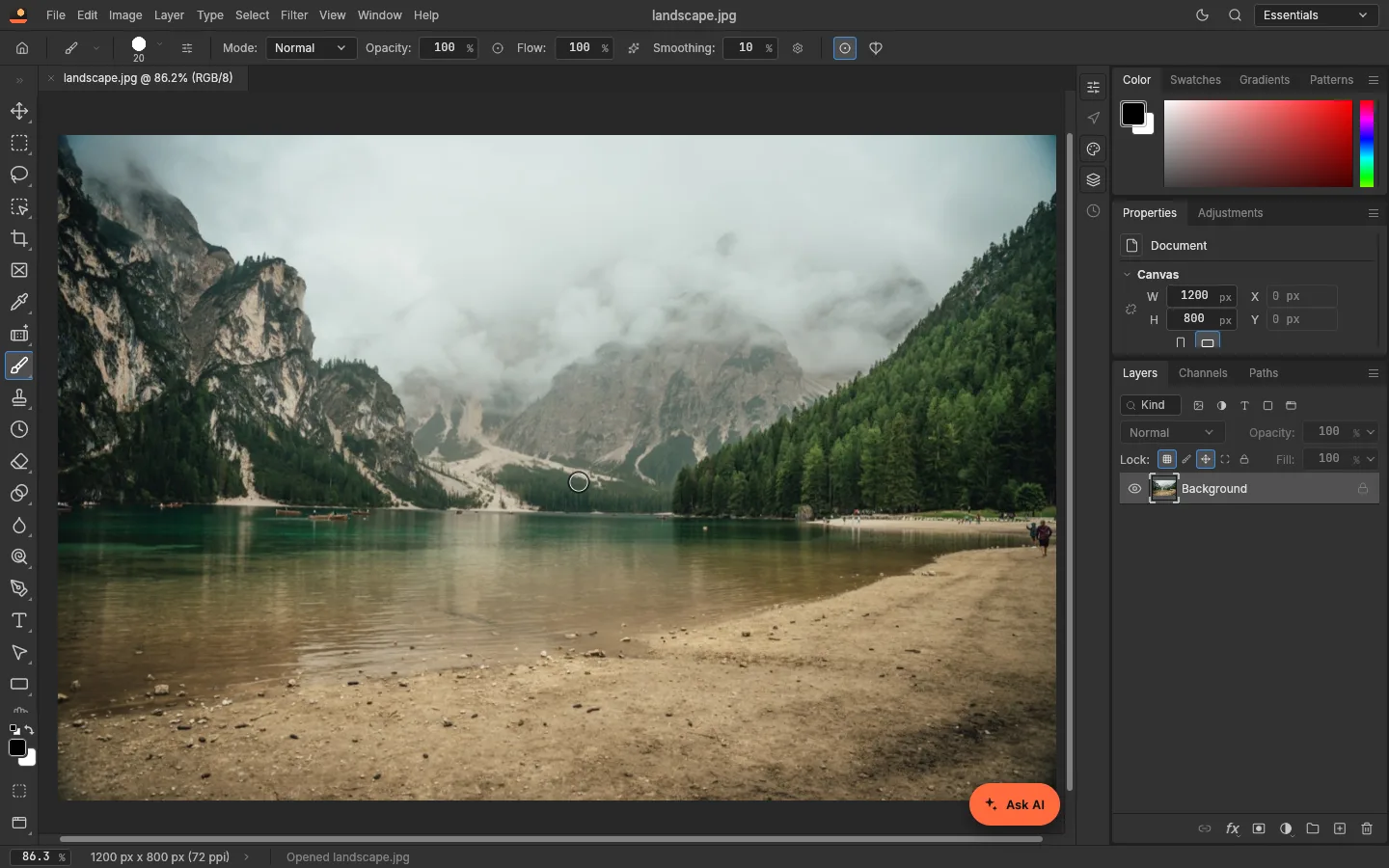 How to use PhotoCraft online: a beginner’s tutorialOpen a photo, add adjustment layers, edit with the AI assistant and save a layered PSD — a step-by-step PhotoCraft tutorial with real screenshots, nothing to install.
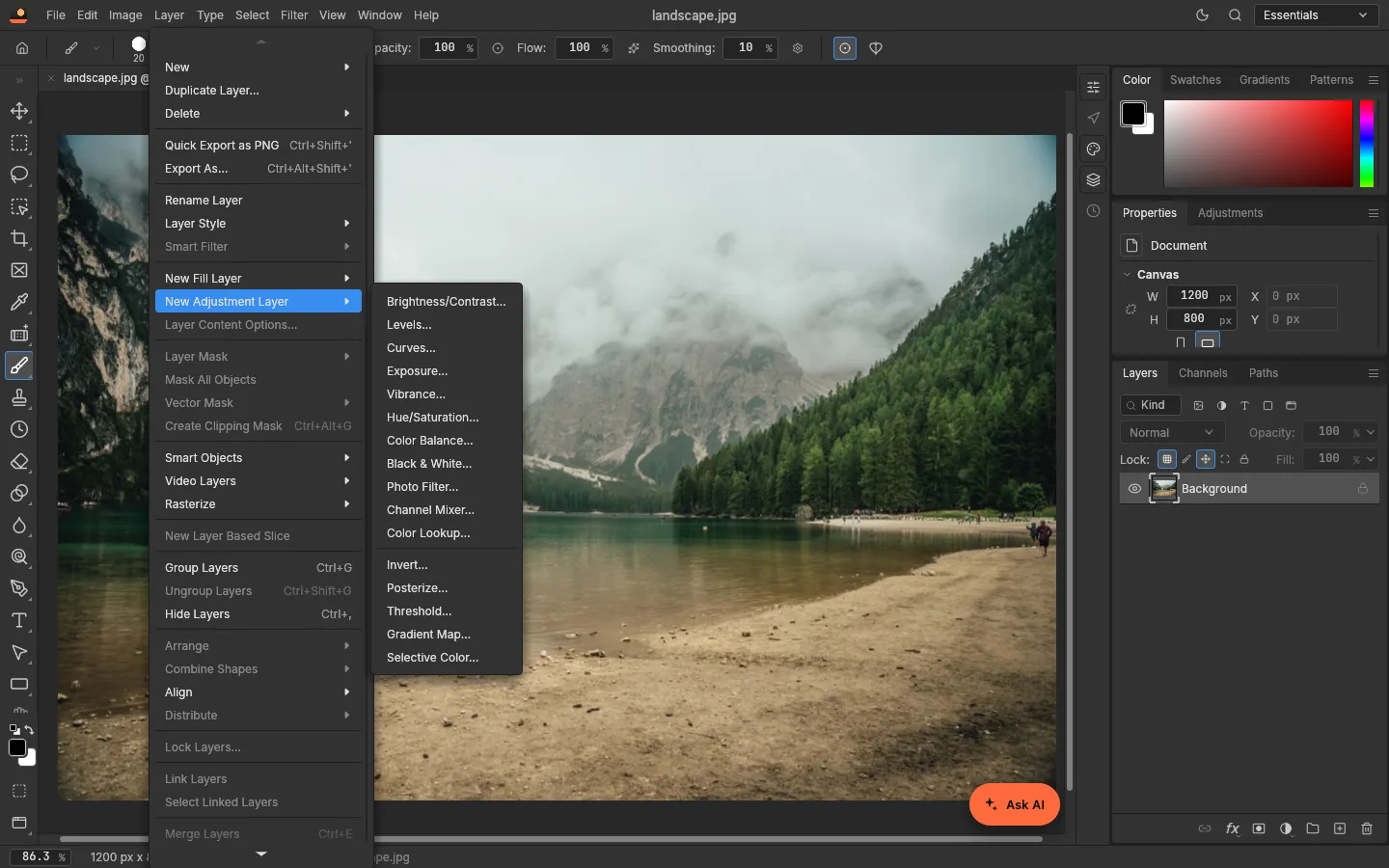 PhotoCraft review: what works, what doesn’t, with measurementsAn honest PhotoCraft review from a team that builds on it: what works, what is still alpha, and measured timings for open, filters and export on 3 MP and 12 MP photos.
 PhotoCraft vs Photoshop: how close is the free clone?How close is PhotoCraft to Photoshop? Its developers measured it against Photoshop 2026; we checked what we could ourselves. Features, PSD, AI and who can switch.
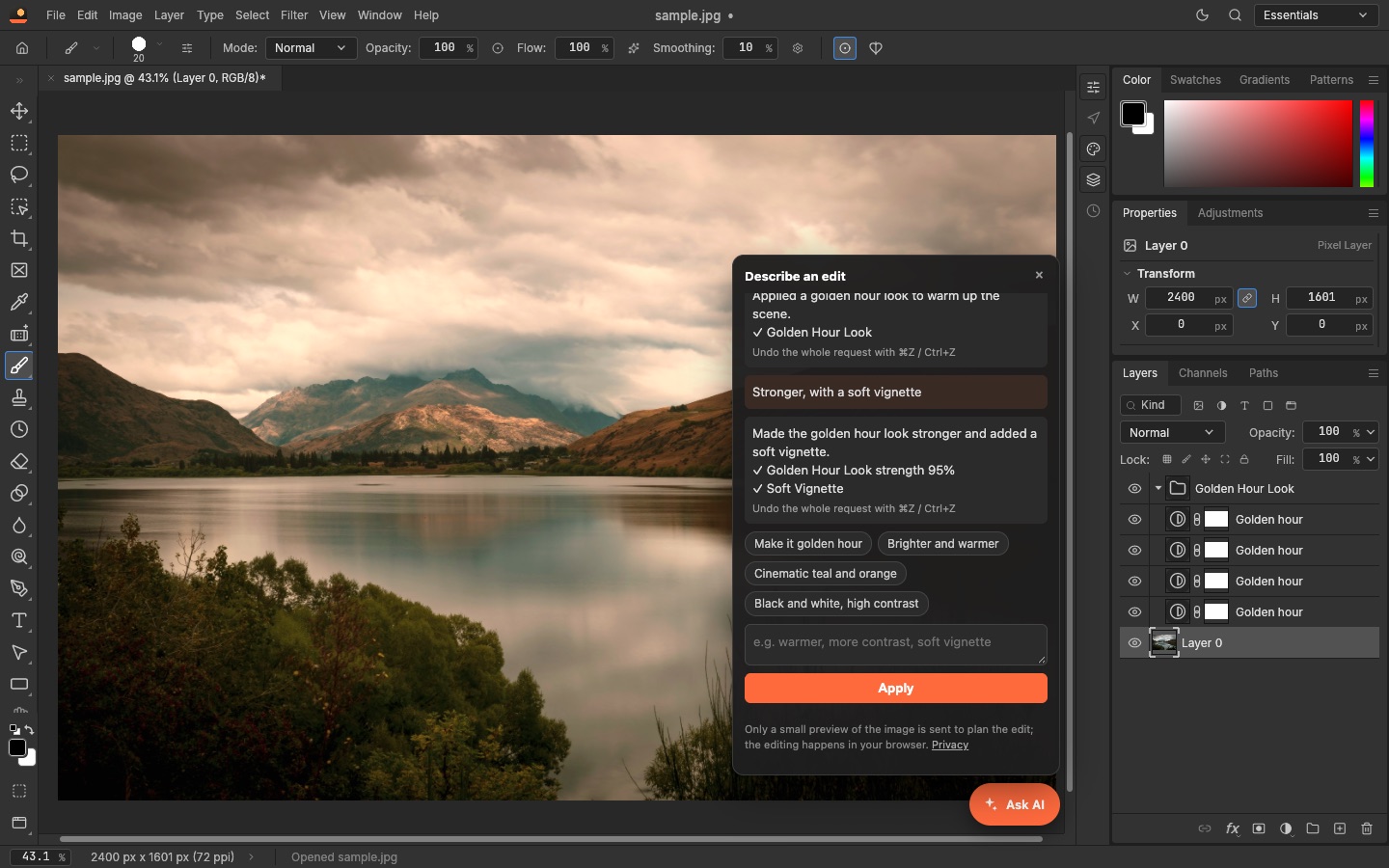 PhotoCraft and AI: describe an edit, or let an agent drive itPhotoCraft has no AI generator built in, but AI can drive it: an assistant that turns a sentence into adjustable layers, and an MCP server for agents. Both tested.