The short version
Open LayerSay Studio (or the PhotoCraft desktop app) and choose File › Open.
Add a Layer › New Adjustment Layer — Curves, Levels, Hue/Saturation… — and tune it in the Properties panel.
Or click Ask AI and describe the edit; it arrives as named layers you can still change.
File › Save As keeps the layers as a PSD; File › Export › Export As writes a flat image.
1. Open PhotoCraft in your browser
PhotoCraft has no official hosted website: the ArtCraft team ships desktop installers for macOS, Windows, Linux and FreeBSD, plus a static web build you can host yourself (README). The quickest way to try it without installing anything is LayerSay Studio, our build of the same editor. Use a desktop browser with a mouse; the editor isn’t designed for phones.
The first visit downloads the whole editor as one WebAssembly file — 24.1 MB, 8.5 MB over the network — and the browser caches it, so later visits start faster. You land on a start screen with New document and Open.
2. Open a photo
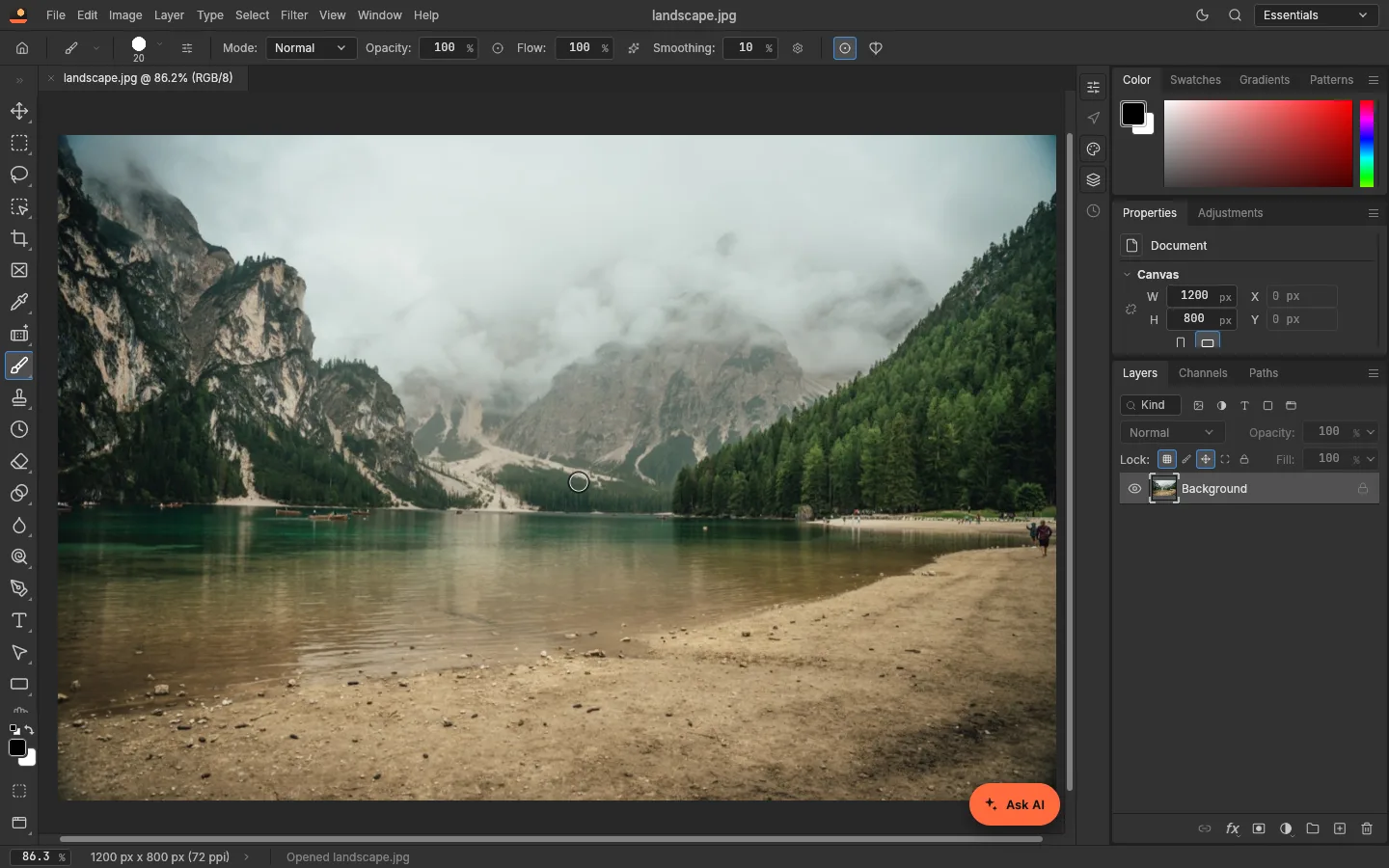
Choose File › Open (Ctrl+O) or drop a file anywhere on the window. The photo opens as a document tab and appears in the Layers panel as a single Background layer; the Properties panel above it shows the canvas size. Besides JPEG, PNG and WebP, it opens PSD, HEIC, camera RAW, TIFF, EXR and FITS — we opened real files of each for our file format pages.
3. Add an adjustment layer
Adjustment layers are the habit worth learning first: instead of changing the photo’s pixels, each one sits on top as its own layer that you can hide, re-tune or delete at any time. Open Layer › New Adjustment Layer — PhotoCraft 0.8.2 lists 16 of them, from Brightness/Contrast to Selective Color.
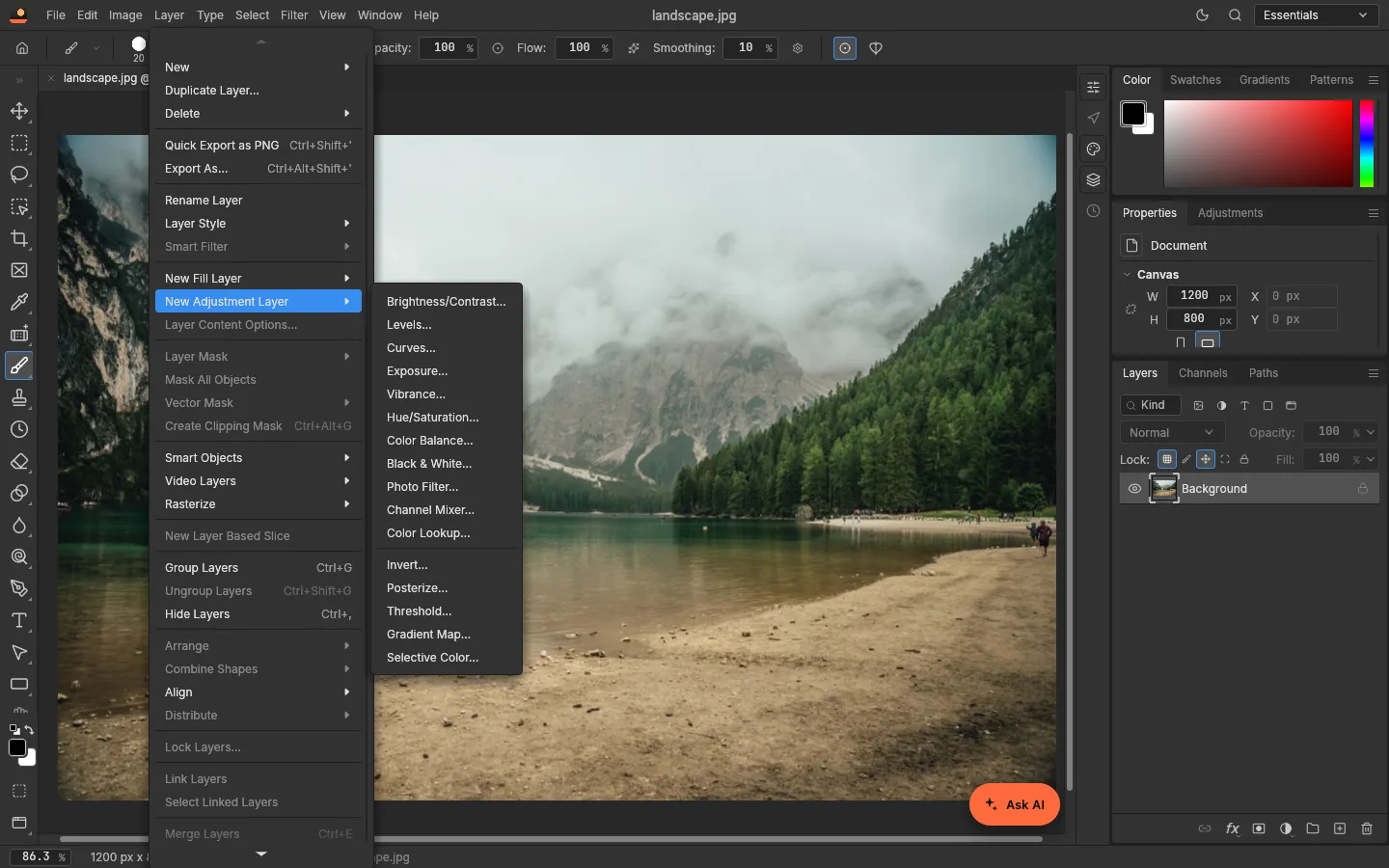
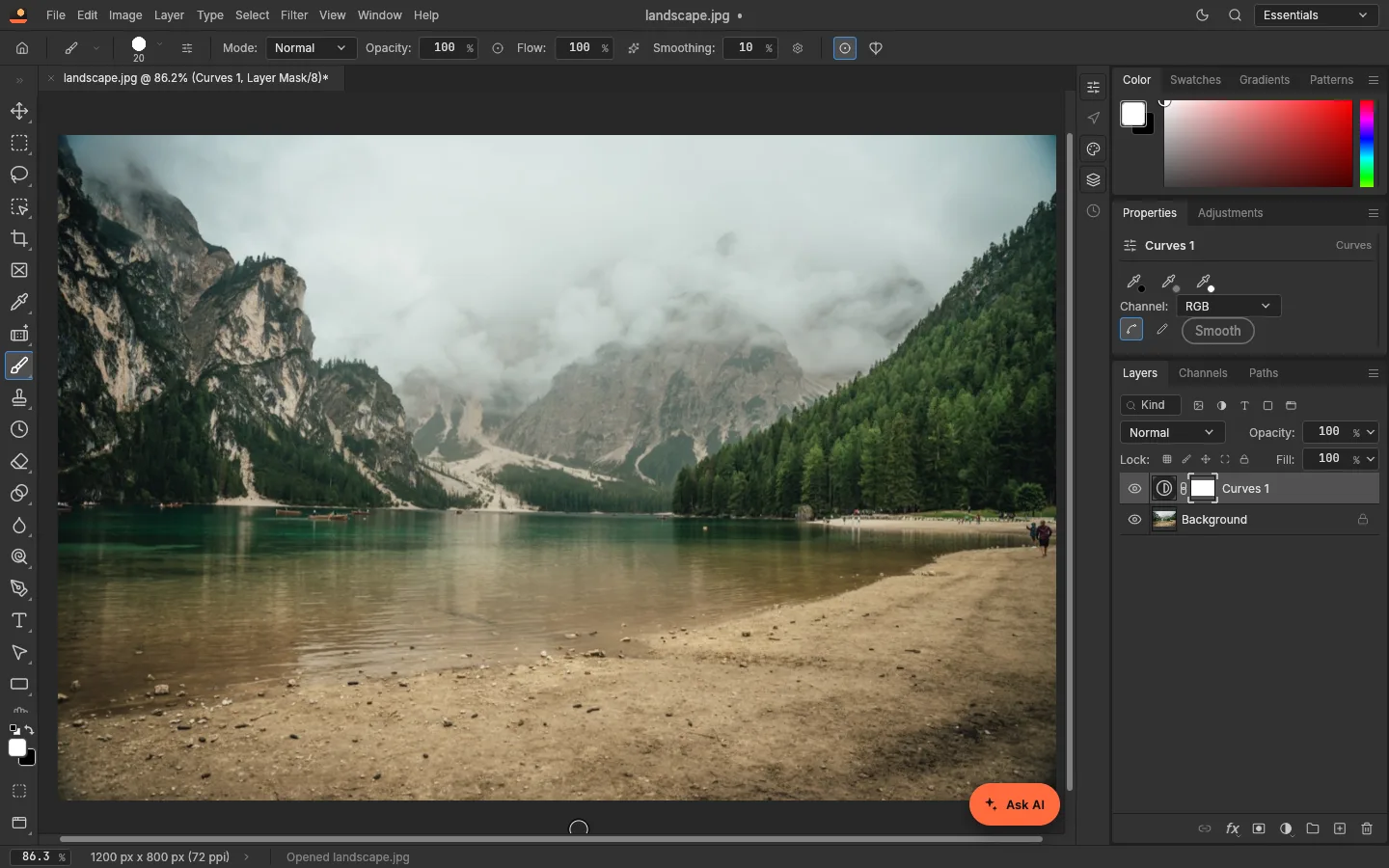
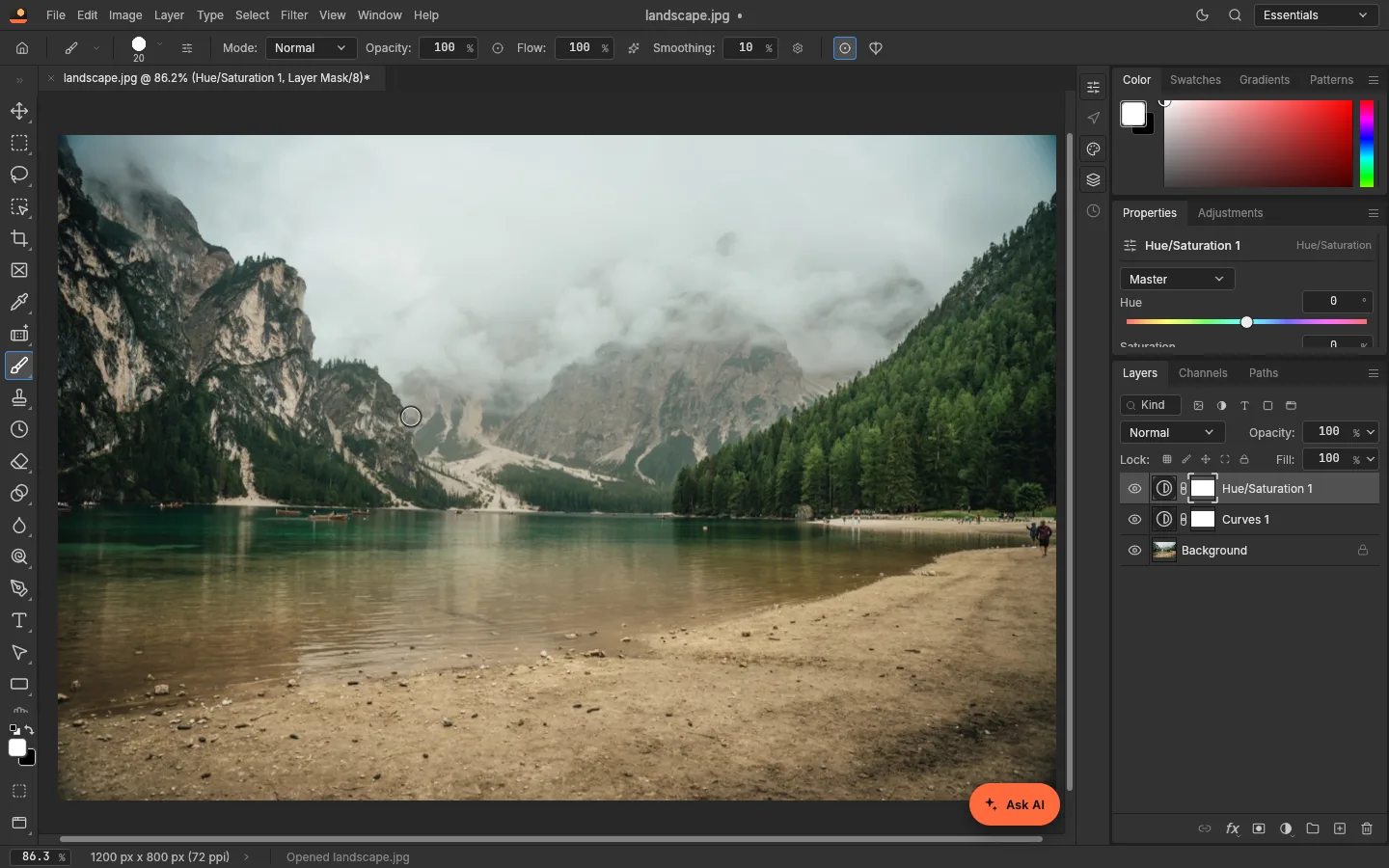
Pick Curves…. A Curves 1 layer with its own white mask appears above the Background, and the Properties panel switches to its controls: the channel (RGB, or one color at a time), the black/gray/white point droppers and the curve itself. Click the eye icon next to the layer to compare with and without it. Painting black on the mask hides the adjustment from part of the photo.
4. Let the AI assistant do the edit
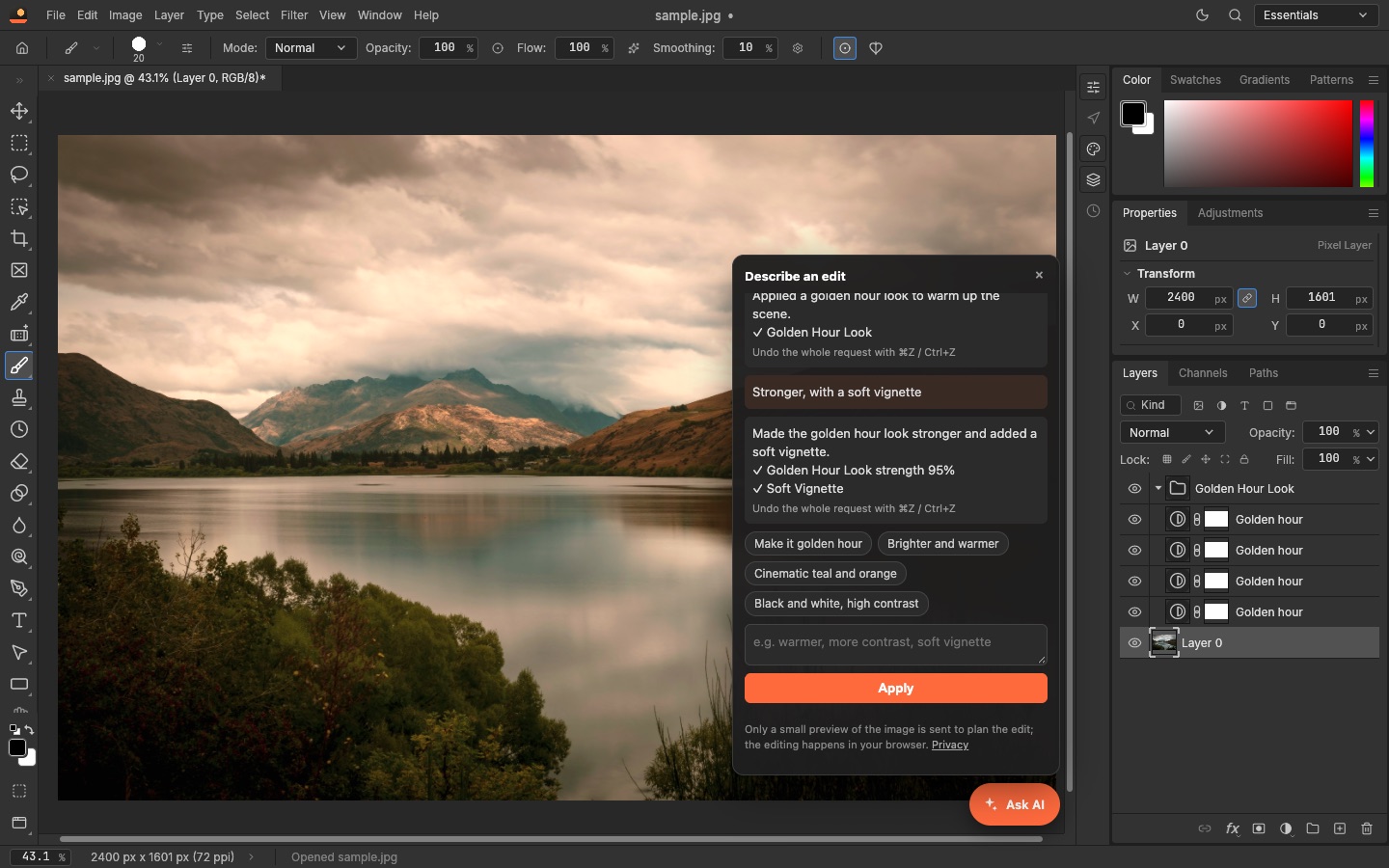
If you don’t know which adjustment does what, describe the result instead. In LayerSay Studio, click Ask AI in the corner and type something like make it golden hour
. The assistant plans the edit, runs it as PhotoCraft commands and reports what it did; the result is a group of named adjustment layers, so step 3 still applies — open any of them and change it by hand. A follow-up such as stronger, with a soft vignette
changes those same layers instead of stacking new ones, and one Ctrl/⌘+Z undoes the whole request.
What leaves your device: to plan an edit, a preview of at most 768 pixels and your instruction are sent to our AI provider; the editing itself runs in the browser (privacy details). The AI assistant is our addition — official PhotoCraft builds don’t include it, although PhotoCraft can be driven by AI agents through its own command line and MCP server (docs).
5. Save the layers, or export an image
Two different things, as in Photoshop:
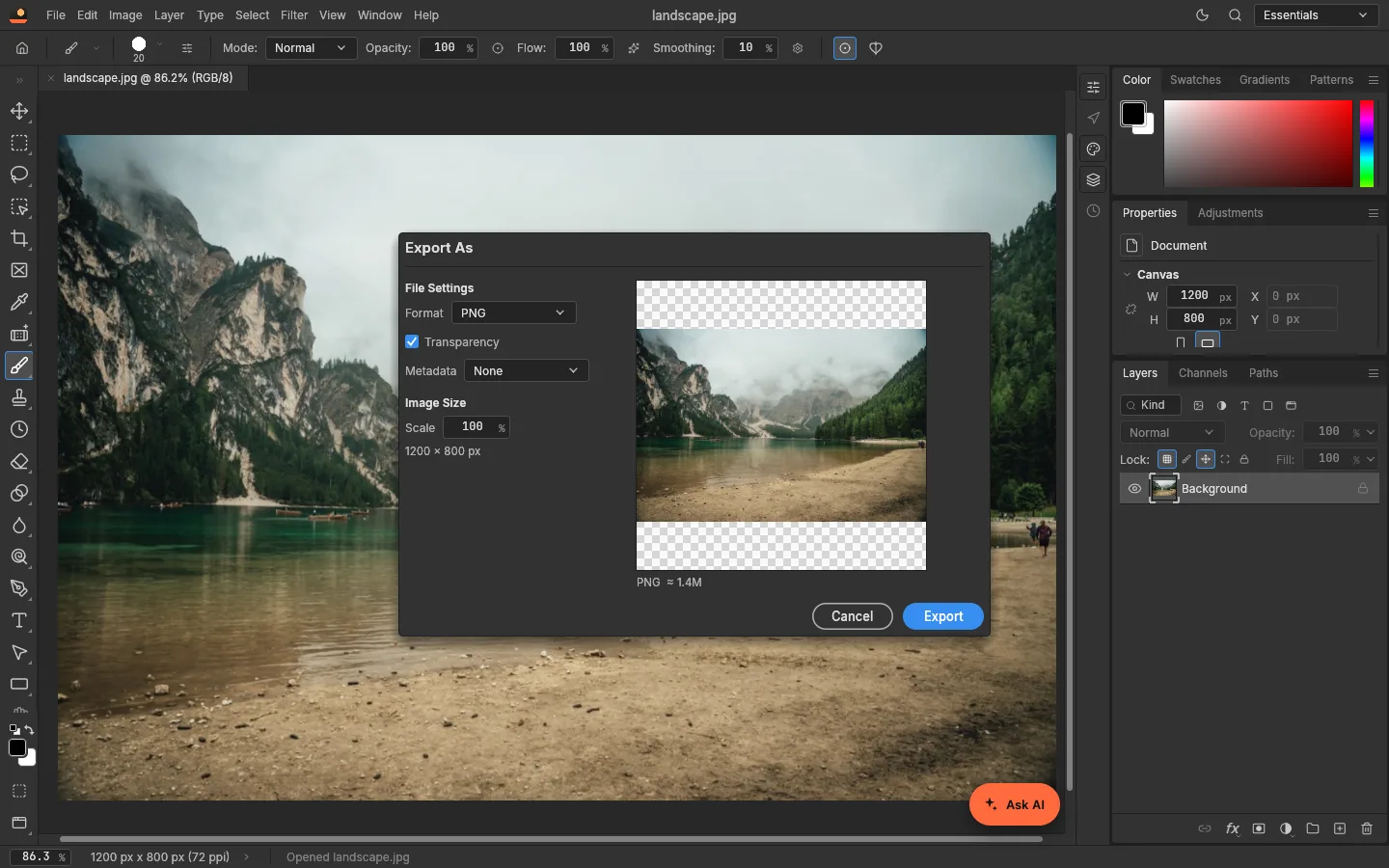
- File › Save As writes a layered file such as a PSD — our test photo saved as
landscape.psd. In the browser, the file is downloaded rather than written to a folder you choose. - File › Export › Export As flattens the image into a format to share, with a scale setting and a size estimate; Quick Export as PNG skips the dialog.
Things that trip up beginners
- Only two fonts in the browser. The web build carries Inter and JetBrains Mono, because a web page can’t use your installed fonts (upstream note). Use the desktop app for type-heavy designs.
- Large photos are slower in the browser. On our machine a blur on a 12-megapixel photo took about 1.1 seconds, and a full-size PNG export about 4.5 seconds — see the measurements in our review.
- Shortcuts follow Photoshop. The menus show them (Ctrl+N new, Ctrl+O open, Ctrl+S save, Ctrl+G group layers), so Photoshop habits carry over.
- It is alpha software. The developers say so themselves; keep a copy of files you care about. Our review covers what works and what doesn’t.
Just want a quick result?
If you only need one edit — a brighter photo, a removed background, a film look — you don’t need the full editor: drop a photo at the top of this page and say what you want. It runs on the same PhotoCraft engine, and every step is still a layer you can adjust.
Disclosure. LayerSay is built on PhotoCraft’s engine, and LayerSay Studio is our own modified build of the PhotoCraft editor. We have an interest in PhotoCraft being good — keep that in mind. We are not affiliated with, sponsored or endorsed by the ArtCraft team or Adobe, and we earn nothing from PhotoCraft downloads.
Sources
- PhotoCraft README (platforms, web build, Crafting Apps)
- PhotoCraft web build: fonts
- PhotoCraft docs: MCP
- PhotoCraft releases (desktop installers)
How we write these pages: editorial policy.
More about PhotoCraft
PhotoCraft review: what works, what doesn’t, with measurementsAn honest PhotoCraft review from a team that builds on it: what works, what is still alpha, and measured timings for open, filters and export on 3 MP and 12 MP photos.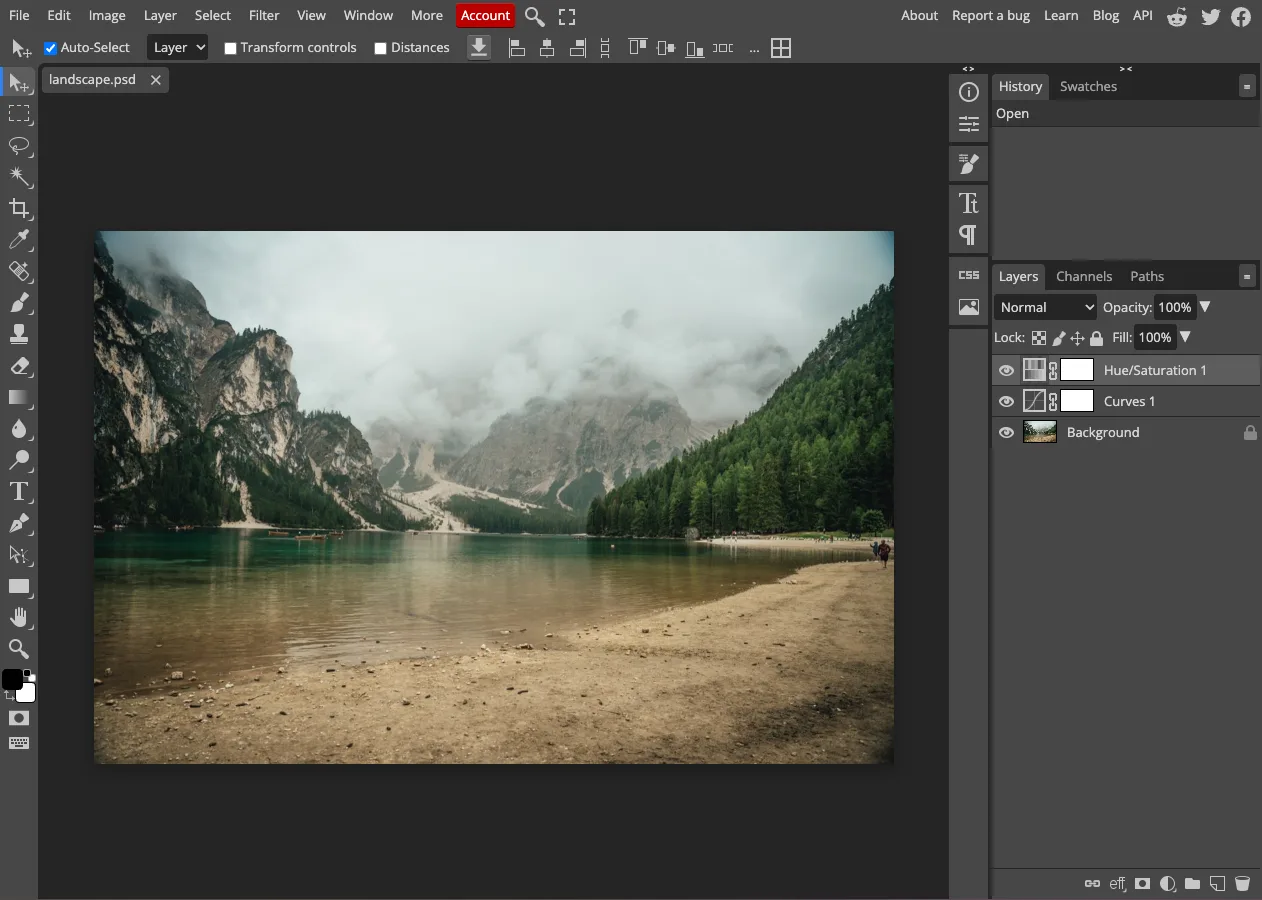 PhotoCraft vs Photopea: two free Photoshop-style editors, testedPhotoCraft vs Photopea, hands-on: a layered PSD passed between them both ways, what each loads, ads, open source, AI and automation. Tested October 2026.
 PhotoCraft vs Photoshop: how close is the free clone?How close is PhotoCraft to Photoshop? Its developers measured it against Photoshop 2026; we checked what we could ourselves. Features, PSD, AI and who can switch.PhotoCraft and AI: describe an edit, or let an agent drive itPhotoCraft has no AI generator built in, but AI can drive it: an assistant that turns a sentence into adjustable layers, and an MCP server for agents. Both tested.