Disclosure. LayerSay is built on PhotoCraft’s engine, and LayerSay Studio is our own modified build of the PhotoCraft editor. We have an interest in PhotoCraft being good — keep that in mind. We are not affiliated with, sponsored or endorsed by the ArtCraft team or Adobe, and we earn nothing from PhotoCraft downloads.
What “PhotoCraft AI” actually means
PhotoCraft itself doesn’t generate images: there is no Generative Fill, and its Select Subject is a classic algorithm, not a neural network (parity assessment). What makes it interesting for AI is the other direction: its 900 commands, each with machine-readable parameter documentation, let an AI operate the editor. The result is ordinary, adjustable layers — not a new image you can’t take apart.
| AI assistant (LayerSay Studio) | MCP server (PhotoCraft) | |
|---|---|---|
| For | Anyone editing a photo | Developers, and people using AI agents such as Claude Code |
| How you use it | Type the edit in a panel inside the editor | Connect an agent to photocraft-cli mcp |
| Setup | None — open the page | Install PhotoCraft’s command-line tool |
| Who made it | Us (not part of PhotoCraft) | The PhotoCraft developers |
1. Describe the edit in the editor
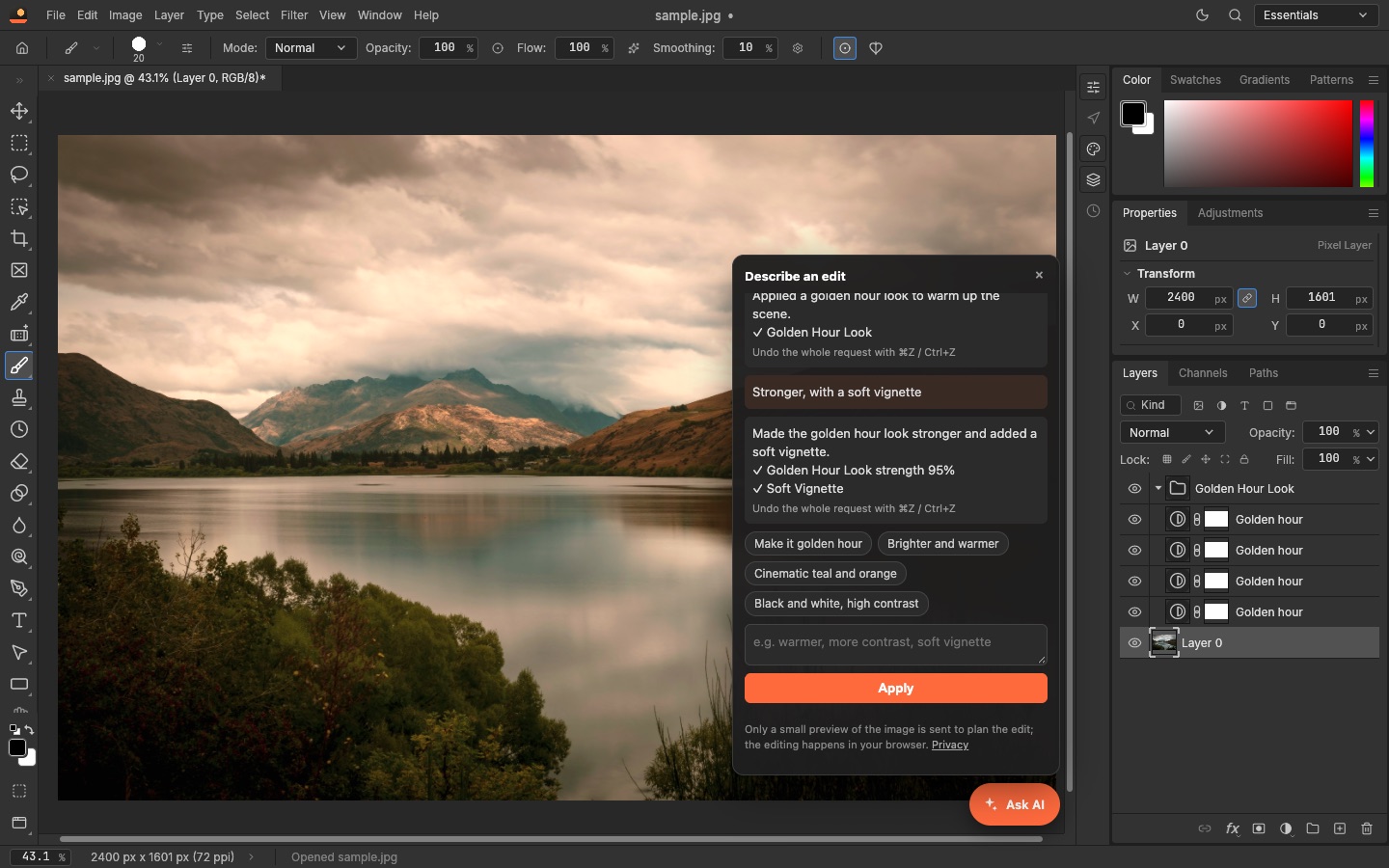
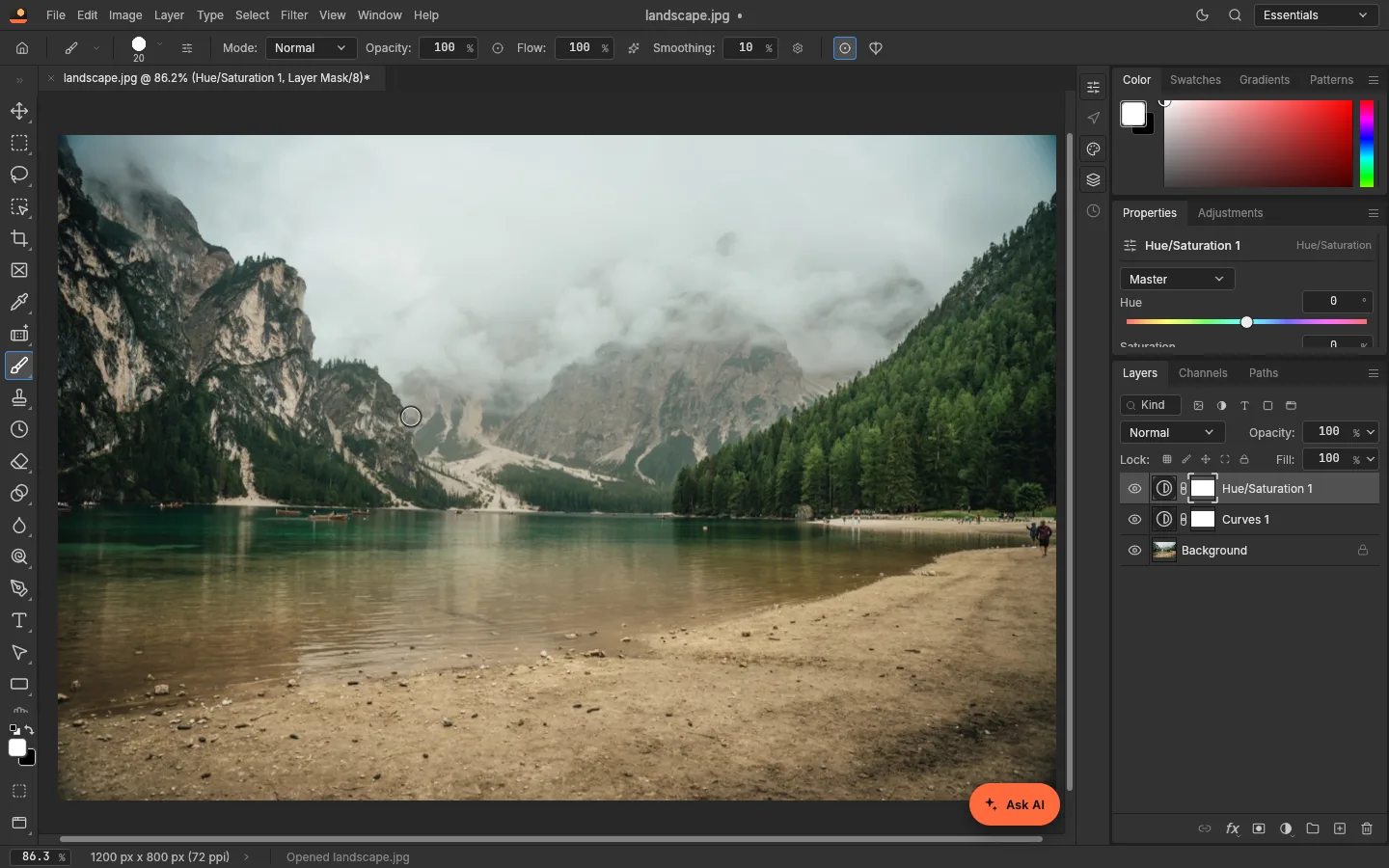
In LayerSay Studio, click Ask AI and write what you want, such as make it golden hour
. Behind the panel, which we built:
- A preview of at most 768 pixels and your sentence go to a vision-capable language model. Your full-size photo stays in the browser.
- The model answers with a plan: a short list of PhotoCraft commands and settings, chosen from a whitelist of 52 commands plus our own looks and text steps.
- Every command and value is checked against the engine’s own parameter documentation before anything runs — necessary, because the engine itself quietly clamps or ignores some bad values.
- The plan runs as named layers in your document, as one history step: one undo removes the whole request, and a follow-up such as “stronger” changes those same layers.
How well does it work? In our first test in October 2026, with 30 varied requests and an earlier version of the planner, all 27 plans that should run locally ran, the 3 requests that needed generative AI were correctly recognised as such, and 23 of 30 results looked right on the first try (26 counting ones that went the right way but too softly). The misses were telling — a “sunset feel” that turned muddy, text sized in the wrong units — and each led to a fix in how plans are built, such as hand-tuned looks for style requests.
2. Let an AI agent drive PhotoCraft over MCP
PhotoCraft ships an MCP server, the protocol AI agents use to call tools. We connected to it directly from a script to see what an agent gets. The server identified itself as photocraft 0.8.2 and offered 25 tools, among them doc_open, command_list, command_run, command_batch, doc_save and render_preview. One session:
| Tool call | Result | Time |
|---|---|---|
doc_open landscape.jpg | 1200×800, one layer | 97 ms |
command_batch: Curves + Vibrance adjustment layers | 2 completed, 0 failed | <1 ms |
doc_save as PSD | Layered PSD written | 81 ms |
render_preview, 512 px | Preview image returned to the agent | 58 ms |
doc_open /etc/hosts | Rejected: outside the folder the server was given | 0 ms |
command_run Brightness 9999 | Succeeded, stored as 150 (the maximum) | 1 ms |
PhotoCraft 0.8.2 command-line tool built from source on macOS (Apple M2 Pro), 2026-10-26.
Two things to take from the last rows. The folder sandbox works: the server only reads and writes inside the folders you name when you start it. And the agent isn’t told when a value was out of range, so ask it to read command_list’s parameter documentation and stay within it.
To connect Claude Code, PhotoCraft’s docs give this command (on Linux, or macOS with the separate command-line download on your PATH):
claude mcp add photocraft -- photocraft-cli mcp --automation-read-root <dir> --automation-write-root <dir>PhotoCraft’s developers also warn that an authenticated client isn’t limited to document-only actions, so don’t expose the server to tools or services you don’t trust (security notes).
What AI can’t do with PhotoCraft (yet)
Anything that needs new pixels: removing an object and filling the hole, replacing a background, extending a photo. PhotoCraft has no generative model. On layersay.com we add those as separate generative edits that use credits; the result comes back as a layer like everything else.
Want to try the first way now? Open LayerSay Studio, or drop a photo at the top of this page and describe the edit.
Sources
- PhotoCraft docs: MCP (setup and security notes)
- PhotoCraft docs: command-line interface
- PhotoCraft vs Photoshop: target-app parity (AI tier)
How we write these pages: editorial policy.
More about PhotoCraft
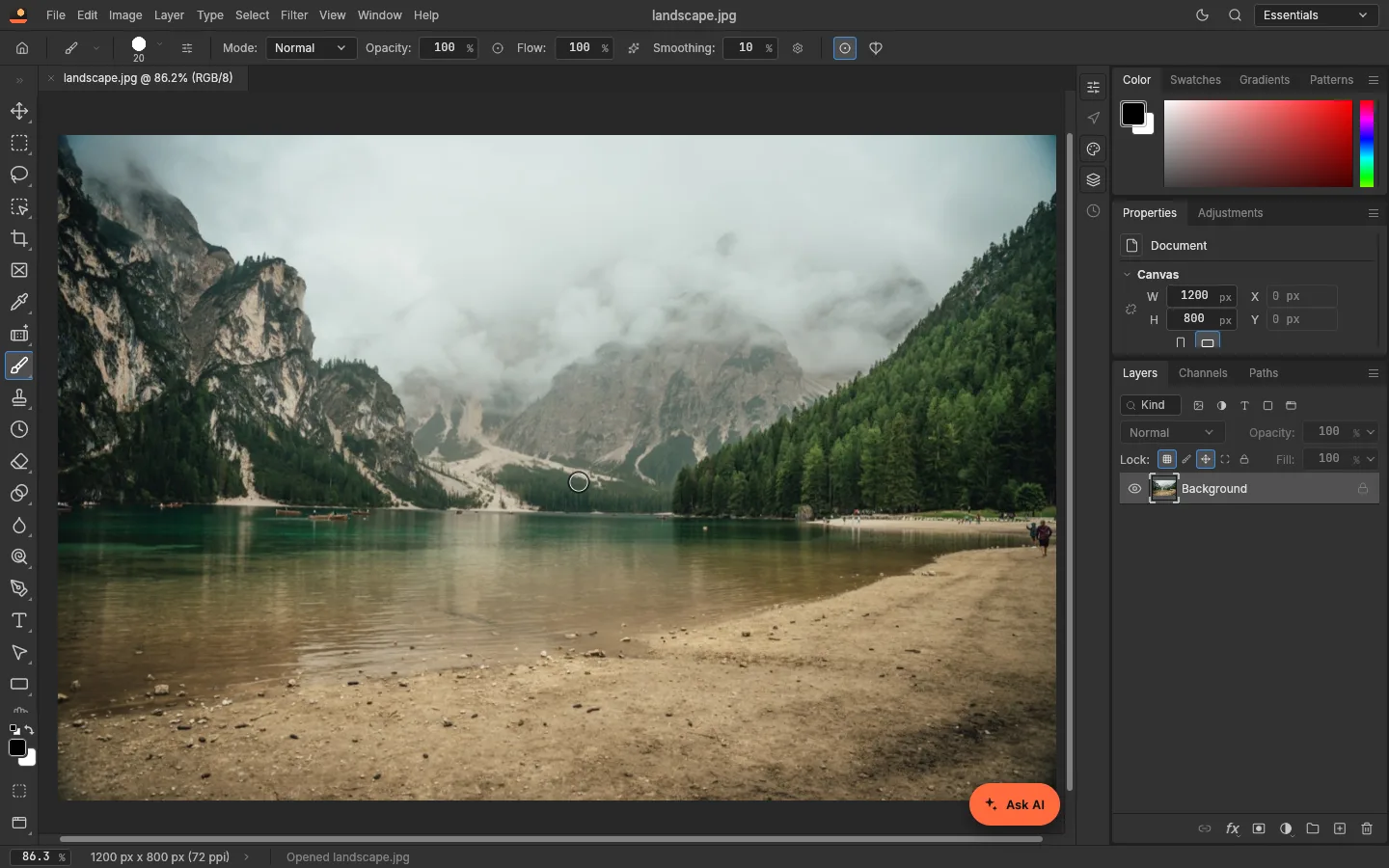 How to use PhotoCraft online: a beginner’s tutorialOpen a photo, add adjustment layers, edit with the AI assistant and save a layered PSD — a step-by-step PhotoCraft tutorial with real screenshots, nothing to install.
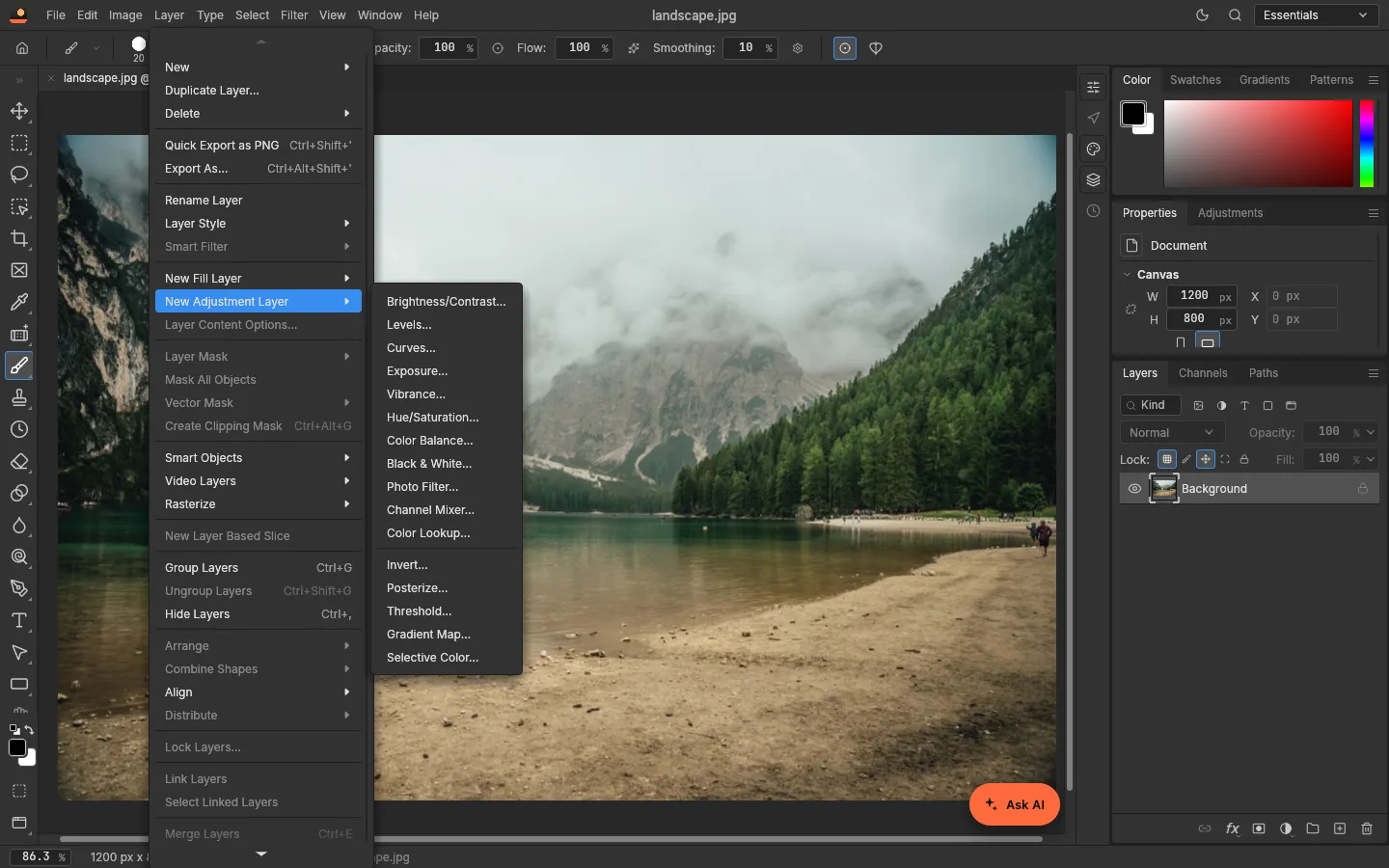 PhotoCraft review: what works, what doesn’t, with measurementsAn honest PhotoCraft review from a team that builds on it: what works, what is still alpha, and measured timings for open, filters and export on 3 MP and 12 MP photos.
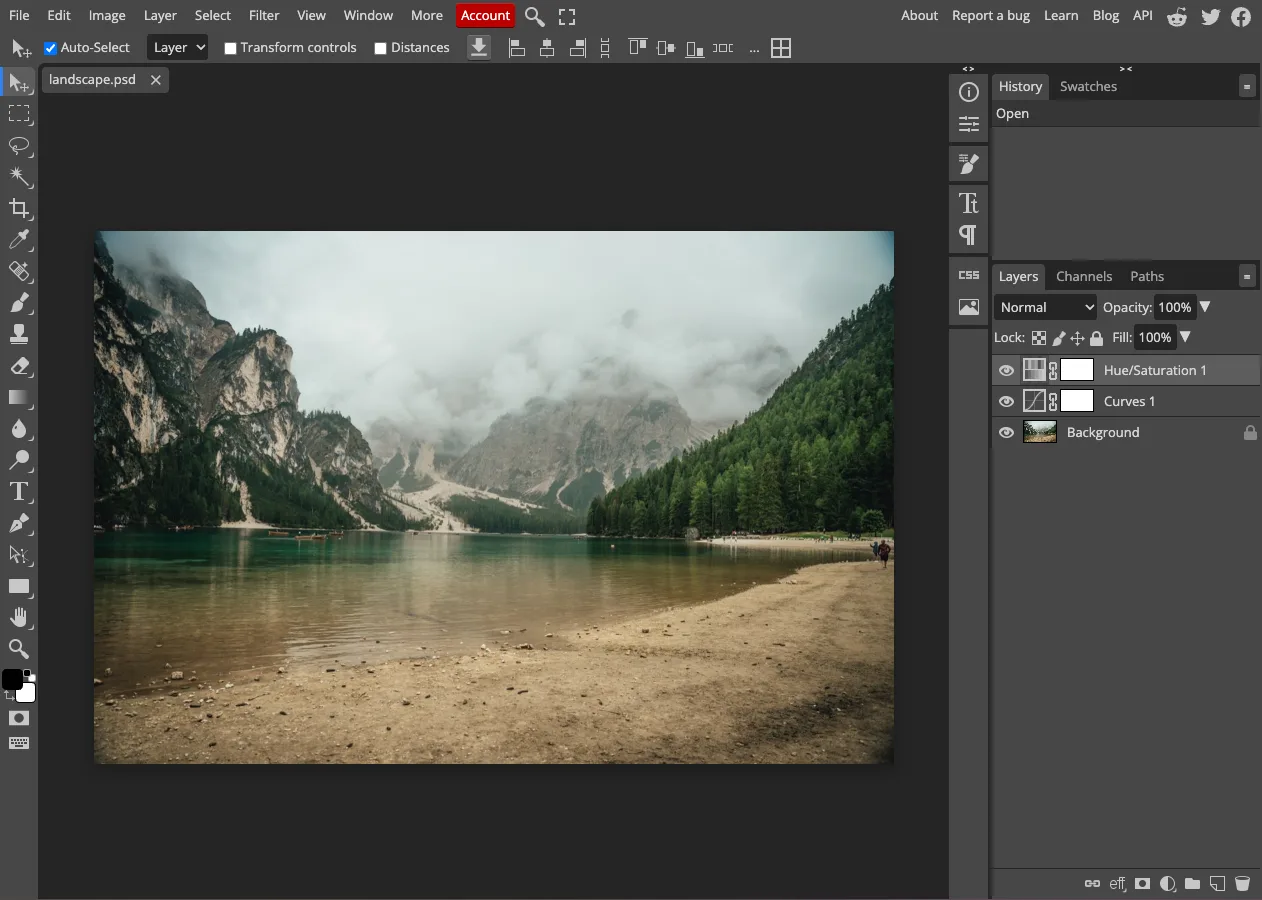 PhotoCraft vs Photopea: two free Photoshop-style editors, testedPhotoCraft vs Photopea, hands-on: a layered PSD passed between them both ways, what each loads, ads, open source, AI and automation. Tested October 2026.
 PhotoCraft vs Photoshop: how close is the free clone?How close is PhotoCraft to Photoshop? Its developers measured it against Photoshop 2026; we checked what we could ourselves. Features, PSD, AI and who can switch.