Resize photos for Instagram
Edit your photo, then export it in the shape each platform wants: a square post, a 4:5 portrait post, a 9:16 story or a 16:9 cover — or all the Instagram sizes at once.
FreeNo sign-upYour photo stays on your device
Continue editing saved on this device only
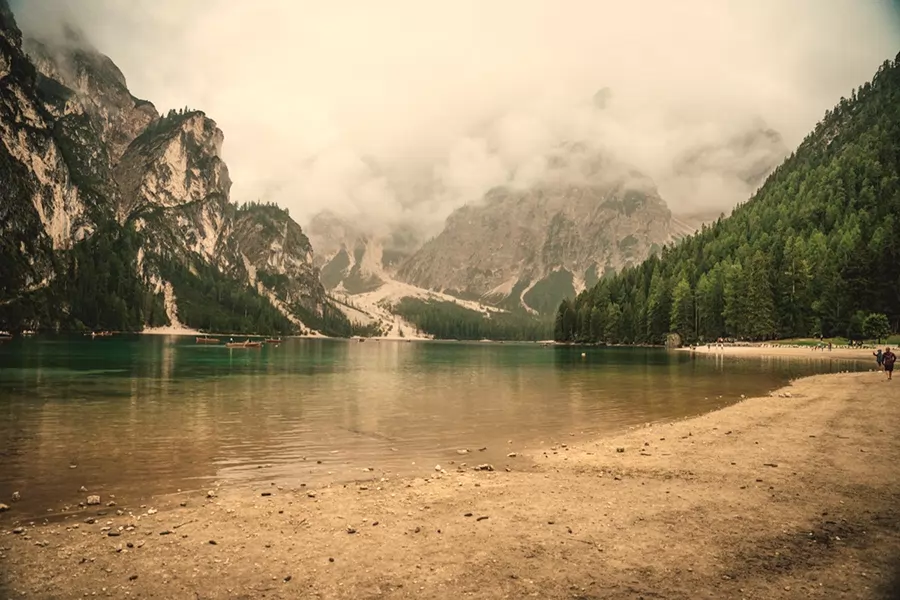
- “Crop to square”
- “Make it brighter”
- “Warm vintage film look”
- “Blur the background”
Sizes you can export
Square 1:1 for feed posts, Portrait 4:5 for taller feed posts, Story 9:16 for Stories and Reels covers, and Wide 16:9 for YouTube thumbnails and headers. Each is the largest centered crop of your edited photo.
Tick “Social pack” to get three files in one ZIP at Instagram’s sizes: 1080×1080, 1080×1350 and 1080×1920.
The size menu limits the long side to 4096, 2048 or 1080 pixels, or keeps the original resolution.
How to do it
- Drop a photo above and make any edits you want.
- Click Export, choose a shape (or tick Social pack), a format and a size.
- Download. The crop happens only in the exported file, so you can export other shapes from the same edit.
When the center isn’t right
Export crops from the center. If your subject is off to one side, describe the crop instead — “crop to square” or “crop to 4:5” — and it becomes a step you can adjust, then export “As edited”.
Related
Batch edit photos online · A photo editor that doesn’t upload your photos · All one-click edits · Photo looks
FAQ
What size should an Instagram post be?
Common sizes are 1080×1080 for a square post, 1080×1350 for a 4:5 portrait post and 1080×1920 (9:16) for Stories. The Social pack exports all three.
Does it reduce quality?
Cropping keeps the original pixels; only the size you pick scales the photo. JPG and WebP quality can be set from 40 to 100, and PNG is lossless.
Can I do this for many photos?
Yes — drop them all at once, set the shape in Export, then tap “Apply to all” to crop the whole batch the same way.
Is my photo uploaded?
No. Cropping and resizing happen on your device.